
Google Tag Manager: What It Is, How It Works and How to Set It Up
What Google Tag Manager is, how it works, how to install it on WordPress and Shopify, set up GA4 and conversions with consent, server-side tagging and the mistakes that cost you data and budget.

Eugenio Tommasi
Founder of SEO SRL
Published 13 min read

Google Tag Manager (GTM) is a tag management system: it lets you quickly update measurement codes, known as tags, on your website and apps, from its interface and without touching the code.
Table of contents (10 sections)
- What Google Tag Manager is and what it is for
- How Google Tag Manager works: tags, triggers, variables and the data layer
- How to install Google Tag Manager in 5 steps
- Initial setup: GA4, Google Ads conversions and events in 10 points
- Consent Mode v2 with Tag Manager: what changes and how to set it up
- Server-side tagging: when it makes sense
- 8 common Google Tag Manager mistakes (and how to avoid them)
- What's new in Google Tag Manager for 2025-2026
- Where to start
- Frequently asked questions
In short
- Free and the clear market leader. It is the tag manager on 99.6% of the sites whose tag manager is known: about 45% of all websites.
- Tags, triggers and variables. The tag says what to send, the trigger says when, the variable says with which values. Just 2 snippets on your site are enough.
- June 15, 2026. Google Ads cookies and IDs collected through Analytics depend only on consent mode.
- Server side. In production, Google estimates $30-50 per month per server, with at least 2 instances.
- August 20, 2026. Google announces the unification of the Google tag and Tag Manager, plus visual tagging, in beta.
Almost one website in two uses Google Tag Manager: about 45% of all websites as of October 2026, according to W3Techs. The reason: with a single tool you manage Google Analytics 4, Google Ads and third-party pixels without touching the code every time. Here is how it works, how to install and configure it with consent, and which mistakes cost you data and budget.
What Google Tag Manager is and what it is for
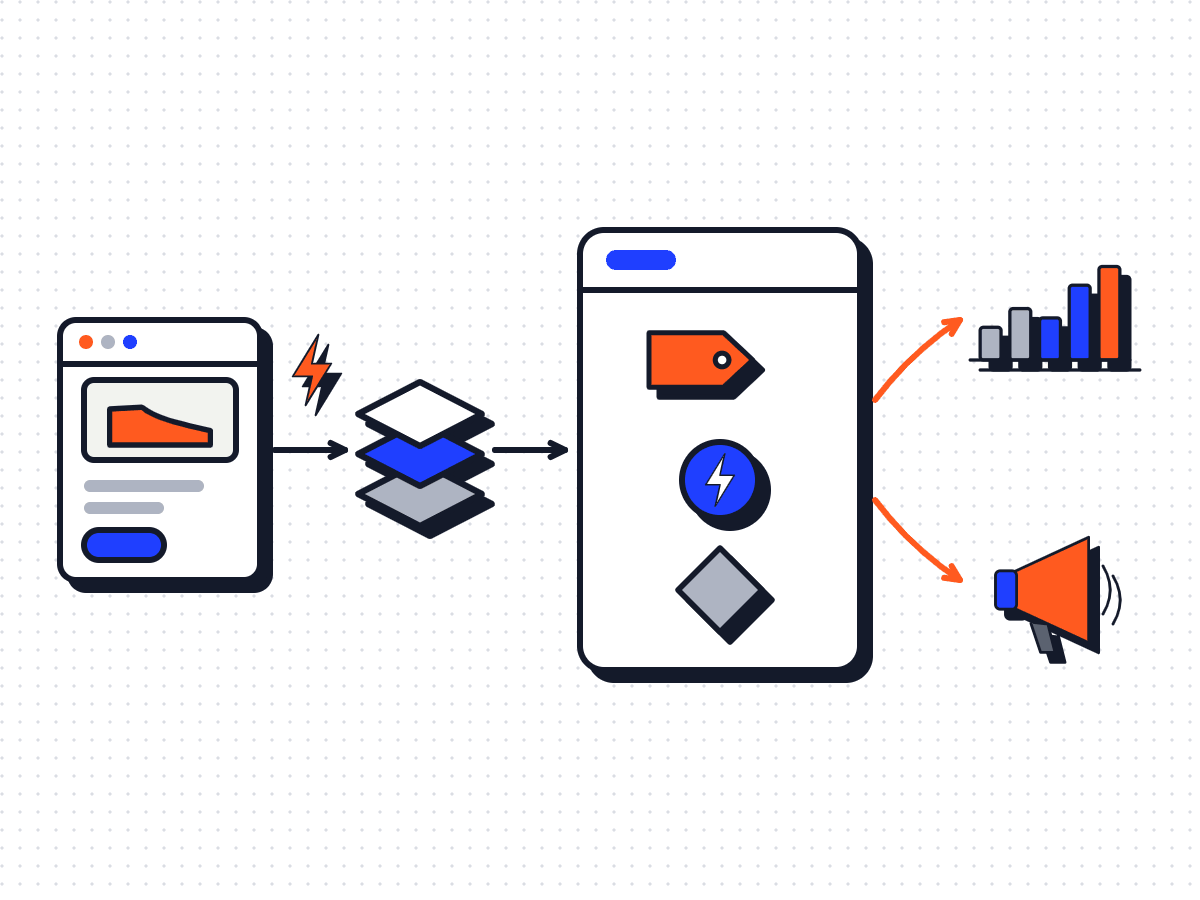
Google Tag Manager (GTM) is a tag management system: it lets you quickly update measurement codes, known as tags, on your website and apps. A tag is a piece of code that sends data to a system, for example Google Analytics.
You install the container once: it holds all the tags, triggers, variables and settings for the site. Then you add, edit and remove tags from the interface, without touching the code. The standard version is free. You can use it to manage GA4, Google Ads conversions and remarketing, social network pixels and the tag of your consent management platform (CMP).
Example. A furniture e-commerce store passes the order value once, and GA4, Google Ads and the social pixel all use it. Whether the customer comes from an ad or from the answers of Google AI Mode, you measure it with the same tags.
Google tag vs Tag Manager: which one do you need?
They are not alternatives. The Google tag (gtag.js) is a single tag for measuring your site and ads, the foundation of all measurement for Google Ads and GA4. Tag Manager is the system that manages that tag and all the others.
| Google tag (gtag.js) | Google Tag Manager | |
|---|---|---|
| Code on the site | 1 snippet per page | 2 snippets per page |
| Third-party tags | No: sends data only to Google | Yes, including custom ones |
| Versions and teamwork | Depends on how you manage the code | Workspaces and versions |
| Server side | You still need Tag Manager | Supported |
| Cost | Free | Free |
Three cases to help you choose:
- Professional services firm on WordPress, with GA4 and a contact form. The Google tag is enough: it is the route for anyone without developers or using a CMS who wants the basic metrics (page views, clicks, scrolls). The Google Ads conversion on the thank-you page can also be set up without code, based on the page URL, but this automatic conversion does not integrate with Tag Manager.
- E-commerce with GA4, Google Ads, social pixels and a cookie banner. You need Tag Manager: all tags in one place, with preview and versions.
- Already have Tag Manager? Keep using it and do not add gtag.js to your code: you don't need it.
How Google Tag Manager works: tags, triggers, variables and the data layer
There are two levels: one account for the company, one container for each website or app, of type Web, iOS, Android, AMP or Server. Four components work inside:

| Component | What it does | E-commerce example | Professional firm example |
|---|---|---|---|
| Tag | Sends data to a system | GA4 purchase event |
Google Ads “appointment request” conversion |
| Trigger | Listens for events: clicks, form submissions, page loads | purchase event from the data layer |
View of the /thank-you/ page |
| Variable | Placeholder for a value that changes | Order value and currency | Page URL |
| Data layer | Stores values in the browser for tags, triggers and variables | Order ID, products, total | Service selected in the form |
A tag must have at least one trigger, whose filters combine a variable, an operator and a value: “Page URL contains /thank-you/”. The built-in variables cover most needs; for the rest you create your own.
The data layer explained simply
The data layer is the object the site uses to pass information to tags. You need it when a value can't be read reliably from the page: an order total, the requested service. A developer populates it like this:
window.dataLayer = window.dataLayer || [];
window.dataLayer.push({
  event: 'generate_lead',
  servizio: 'consulenza_fiscale'
});
Three rules to follow: if the value is needed when the container loads, the push must go above the Tag Manager snippet; never overwrite with dataLayer = [...], which wipes existing values; the name dataLayer is case-sensitive.
Workspaces, versions and preview
- Workspaces. 3 per container in the free version, unlimited with Tag Manager 360.
- Versions. Each version is a snapshot of the container: if something breaks, you republish the previous one.
- Preview. Tag Assistant shows which tags fire and why, only in the browser that started it.
- Permissions. Only people with publish permission can push changes live.
How to install Google Tag Manager in 5 steps
- Create an account and a container. At tagmanager.google.com: account name, country, site name, Web type.
- Copy the two snippets. The first as high as possible in the
<head>, the second right after the opening<body>, on every page. - Paste them only once, in the template shared by all pages or with a plugin.
- Check with preview: enter the site URL and connect Tag Assistant.
- Publish: Submit, “Publish and create version”, name and description. Until this step, your changes are not live.
Then check Admin > Tag coverage: up to 10,000 pages, with tag status updated within 24 hours.
Google Tag Manager on WordPress
- Site Kit by Google. This is Google's official plugin, free and active on over 5 million sites: it sets up Tag Manager without editing code.
- Manual insertion of the two snippets in the theme, preferably a child theme: that way you can update the parent theme without losing your changes.
Google Tag Manager on Shopify
On Shopify, tags are pixels, managed in the Customer events section. GTM comes in as a custom pixel: you paste the <head> code without the <script> tags and connect customer events, such as checkout_completed, to the data layer: the Shopify tutorial explains the steps. Limits: tags run in Shopify's sandbox, Tag Assistant's “Troubleshoot tag” feature doesn't detect them, and Shopify doesn't provide support for custom pixels.
Do you only need GA4 and Google Ads? The Google & YouTube app installs the Google tags and offers purchase, add-to-cart and begin-checkout conversions; it's best to remove any previous tags to avoid duplicates.
Initial setup: GA4, Google Ads conversions and events in 10 points
The checklist for properly connecting Tag Manager to Google Analytics and Google Ads:
- Google tag with the GA4 ID (G-…) and the “Initialization - All Pages” trigger, which loads it before the others.
- Built-in variables. Enable the ones you need, such as Page URL. Since December 2025 there are also Client ID, Session ID and Session Number.
- Events with recommended names:
generate_leadfor a form,purchasefor a purchase. The GA4 Event tag needs a measurement ID, an event name and parameters. - E-commerce from the data layer:
purchasewithtransaction_id,value,currencyanditems; before every e-commerce event,dataLayer.push({ ecommerce: null }). - Key events. In GA4, mark the actions that matter: from a key event you create a Google Ads conversion.
- Google Ads conversion: conversion ID and label, plus value, transaction ID and currency for purchases. Trigger only on the confirmation. Several accounts? Keep them in a Google Ads manager account.
- Conversion Linker. Not needed if the container already loads a Google tag on every page; since April 10, 2025, containers with Google Ads and Floodlight tags load it automatically.
- Consent first: CMP template and consent initialization trigger (see below).
- Test: preview, then the GA4 Realtime report and DebugView.
- Housekeeping: clear names, a description for every version, publish permission for one or two people.
Consent Mode v2 with Tag Manager: what changes and how to set it up
Consent mode tells Google whether the user has accepted cookies and identifiers. What the market calls Consent Mode v2 is the update for European Economic Area (EEA) traffic that added ad_user_data and ad_personalization. The four parameters:

| Parameter | What it controls |
|---|---|
ad_storage |
Cookies and identifiers for advertising |
analytics_storage |
Cookies and identifiers for analytics |
ad_user_data |
Sending user data to Google for advertising |
ad_personalization |
Personalized advertising |
To keep using measurement, personalized ads and remarketing for users in the EEA, you must collect consent and pass it on to Google.
Basic or advanced? In basic mode, Google tags stay blocked until the user responds to the banner. In advanced mode, they load with consent denied and send cookieless pings, which Google uses to model metrics. The choice should be made with whoever handles your privacy.
What changed on June 15, 2026. For Google Ads cookies and IDs collected by the Analytics tag, Google signals no longer matter: only consent mode does. In practice ad_storage decides: if it is denied, Google Ads uses less persistent signals, such as URL parameters. During 2026, the use of Analytics data for personalized ads will also depend only on ad_personalization.
How to set it up in Tag Manager:
- Choose a CMP with a template in the community Template Gallery: Google's guide explains how to configure it.
- Fire the CMP tag with the “Consent Initialization - All Pages” trigger, which runs before all the others.
- Set the default values, denied in the regions that require it; with an asynchronous CMP use
wait_for_update(500 milliseconds in Google's example). - Enable Consent Overview in the container settings: Google Ads, Analytics and Floodlight tags have built-in checks, while for the others you require additional consent.
- In preview, accept, reject and close the banner: watch which tags fire.
What about Italy's data protection authority (Garante privacy)? This applies to sites serving users in Italy. Scrolling is not consent: the Garante's cookie guidelines of June 10, 2021 say so. The banner must have an X to close it without accepting and, after a rejection, it must not be shown again for 6 months, barring significant changes. Analytics cookies count as technical only if minimized, for example by masking at least the fourth component of the IP address. The obligations remain with the site owner: Tag Manager applies the choices, it doesn't collect them.
Server-side tagging: when it makes sense
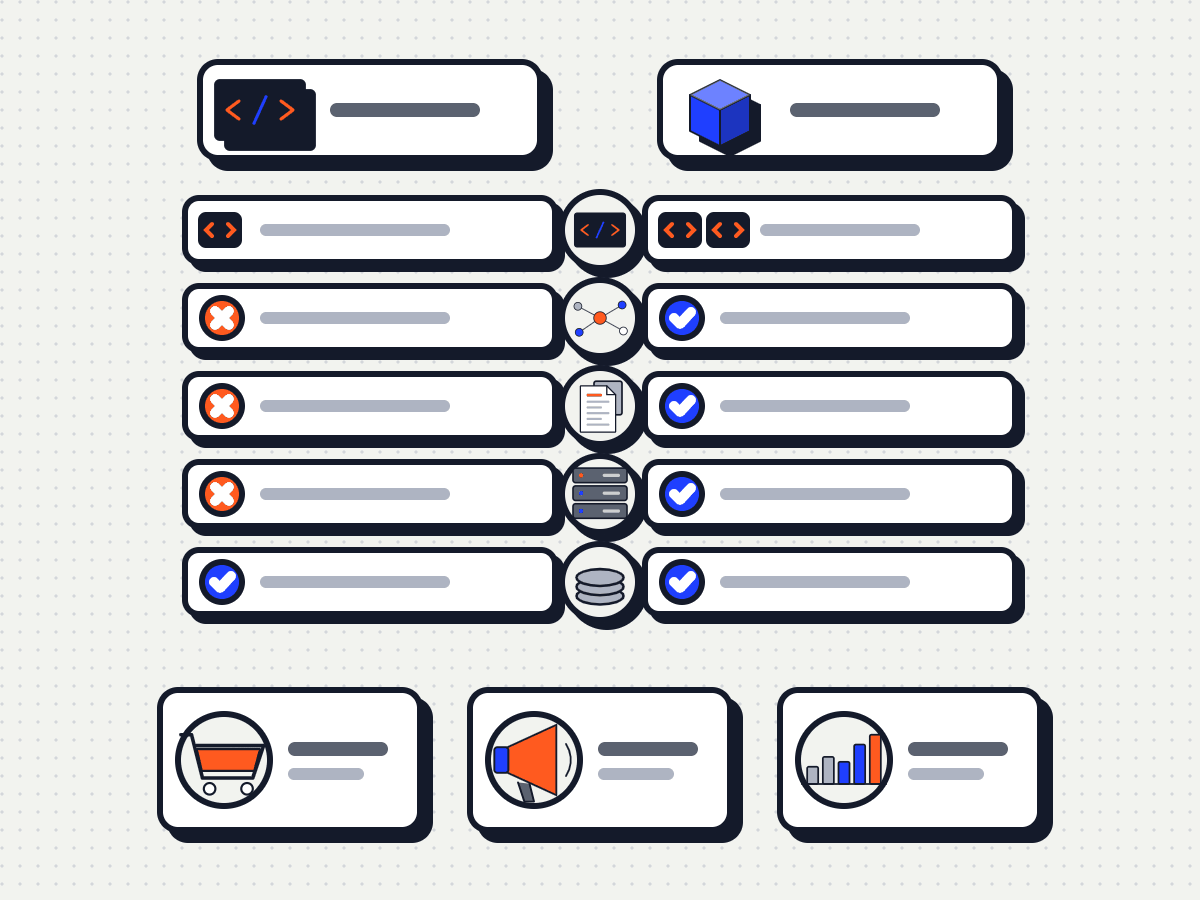
In server-side tagging, the web container sends data to a second container on a server, on Google Cloud or another platform, which forwards it to Google and other vendors. The benefits: less code in the browser, control over what reaches third parties (you can strip personal information), data validated before forwarding and, with a custom domain, cookies that page scripts can't see.
Costs. For testing, a single server on Google Cloud is free in most cases. In production Google estimates $30-50 per month per server. On Cloud Run, Google recommends at least 2 instances, about $45 per month each: 2 to 10 servers handle 35-350 requests per second.
Limits. It requires technical skills and maintenance. And consent is still collected on the site: you configure it in the web container and the server tags adapt.
The lightweight alternative: the Google tag gateway. Launched in May 2025, it serves Google tags from your own infrastructure (CDN, load balancer or web server) without changing the tag code. In Google's tests (April 2025) the gateway increased tag script loads by 11%. It works with Cloudflare, Akamai, Fastly, Google Cloud's load balancer and Amazon CloudFront.
Who it's for. The gateway, if you invest in Google Ads and have a supported CDN. Server side, if you run a high-traffic e-commerce store with many tags. For a professional firm with few conversions, the costs and complexity usually outweigh the benefits.
8 common Google Tag Manager mistakes (and how to avoid them)
Every tracking error pollutes your reports. And if the conversion drives automated bidding, it moves budget to the wrong place.
- Duplicate tags. GA4 in the theme code and also in GTM: page views and conversions counted twice. With Tag Manager, gtag.js in the code isn't needed.
- Conversion on “All Pages”. Every page view becomes a conversion and bidding chases fake numbers. Fire the tag only on the confirmation or purchase event.
- Changes never published. Whatever stays in a workspace isn't live. The opposite mistake: publishing without preview.
- Tags before consent. The default consent mode command must be set before any Google tag fires.
- Overwritten data layer.
dataLayer = [...]wipes the values already there: always usepush. - Wrong purchase values. If the value field of the Google Ads conversion is left empty, Tag Manager sends 0. If you don't clear the ecommerce object, an event inherits the data of the previous one. Without reliable revenue, ROAS is meaningless.
- Swapped IDs. GTM-XXXX goes in the Tag Manager snippet, G- in the Google tag, AW- in Google Ads conversions: Google doesn't support a gtm.js snippet with
gtag('config')commands for G- or AW- IDs. - Custom HTML everywhere. In most cases a tag template is more efficient. Also delete unused tags, triggers and variables.
A serious technical SEO audit checks all of this: without clean data you don't know which pages bring in customers.
What's new in Google Tag Manager for 2025-2026
The main updates, with dates, from the release notes:
| Date | What's new |
|---|---|
| April 10, 2025 | Containers with Google Ads and Floodlight tags load a Google tag first |
| May 2025 | Google tag gateway (formerly “first-party mode”) available to everyone |
| December 11, 2025 | Built-in variables Client ID, Session ID and Session Number |
| January-June 2026 | Gateway also on Akamai, Fastly, Google Cloud and Amazon CloudFront |
| June 15, 2026 | Consent mode becomes the only control over Google Ads data collected by GA4 |
| August 20, 2026 | Google tag and Tag Manager unification, new interface, visual tagging |
| September 17, 2026 | Version name and description suggested by AI |
The August 20, 2026 update:
- Unification. Google tags will become full Tag Manager containers, with interface, debugging and versions. Nothing changes on your site, but the new snippets no longer have the gtag config command.
- Interface. The Overview splits into Settings and Advanced, where you find triggers, variables, templates and folders.
- Visual tagging. You create events and conversions by selecting elements on the site, without code: for now in beta for Google Ads purchase conversions.
Where to start
Google Tag Manager isn't a tool for developers only: it is the most orderly way to decide what you measure, when and with what consent. Start with one container, one Google tag with GA4, events with recommended names, conversions only where they happen and consent before every tag. The data layer, the gateway and server side come later, when the numbers justify them.
Measuring is of little use if the site doesn't bring visits. Turn your site into a source of customers: have your site analyzed. You receive, without having to give access, the 5 things to fix first, starting from technical SEO, content, AI visibility and performance.
Frequently asked questions
Is Google Tag Manager free?
Yes, the standard version is free, just like the Google tag. Tag Manager 360 is the enterprise version, which you request from Google's sales team: unlimited workspaces instead of 3, zones, approvals, testing across multiple environments. Server-side tagging also works with the free version, but the server has a cost: in production, Google estimates $30-50 per month for each server.
What's the difference between Google Tag Manager and Google Analytics?
Google Analytics 4 collects data and turns it into reports: users, sessions, key events. Tag Manager doesn't analyze anything: it decides which tags to fire and when, and sends data to the tools, GA4 included. You can use GA4 with just the Google tag, and Tag Manager without GA4, for example only for Google Ads.
Does Google Tag Manager slow down my site?
It depends on the tags you load: more tags mean more code to run in the browser. It's best to merge similar tags, delete unused tags, triggers and variables, and prefer templates over custom HTML. With many third-party tags, server-side tagging moves part of the work to the server.
Do I need a developer to use Google Tag Manager?
Not for the basics. The container, the Google tag, and events on clicks and confirmation pages are configured from the interface: you don't need to write code for basic setups. You need a developer for the data layer, that is, to pass the order value and products, and for Shopify custom pixels, which Shopify doesn't support.
How do I check that Google Tag Manager is working?
With three checks. Tag Assistant's preview shows which tags fire and why, only in your browser. In GA4, the Realtime report and DebugView show events as they arrive. Tag coverage, in Admin, lists up to 10,000 pages and shows which ones have the tag and which don't.


