
DNS Server: What It Is, How It Works and How to Set It Up
What a DNS server is and how a lookup works, which public DNS services to choose, how to change DNS servers on Windows, Mac, Android and iPhone, which records a website needs and what happens on Google when DNS doesn't respond.

Eugenio Tommasi
Founder of SEO SRL
Published 10 min read

A DNS (Domain Name System) server is the computer that translates a domain name into the IP address of the server hosting the site, so the browser can connect to it.
Table of contents (10 sections)
- What DNS is, in plain words
- How a DNS lookup works
- DNS servers: resolvers and authoritative servers
- The most popular public DNS services and how to choose
- How to change your DNS servers
- "DNS not responding" and NXDOMAIN: two different problems
- If you have a website: DNS zone and records
- DNS and SEO: what happens to Googlebot
- Changing hosting without losing traffic: the DNS checklist
- Frequently asked questions
A DNS server is a computer that translates a website's name, like esempio.it, into the numeric IP address of the server that hosts it. Your device asks it "where is esempio.it?" and it answers with an address, for example 203.0.113.10. DNS (Domain Name System) is the worldwide distributed system these servers belong to.
What DNS is, in plain words
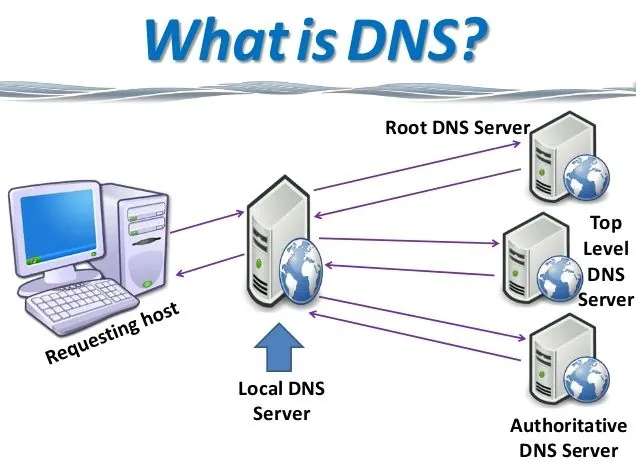
On the internet, computers find each other through IP addresses, numbers like 203.0.113.10 (IPv4) or 2001:db8::1 (IPv6). People, on the other hand, remember names. DNS is the phone book that links the two: you type a name in the browser, DNS returns the number, and the browser connects to that number.
It is not a single phone book kept in one place. It is a system spread across a huge number of servers around the world and organized as a hierarchy: nobody knows every address, but everybody knows who to ask.
A distinction that confuses many people: 8.8.8.8 is not the address of google.it. It is the address of Google Public DNS, a service you can ask for translations.
How a DNS lookup works
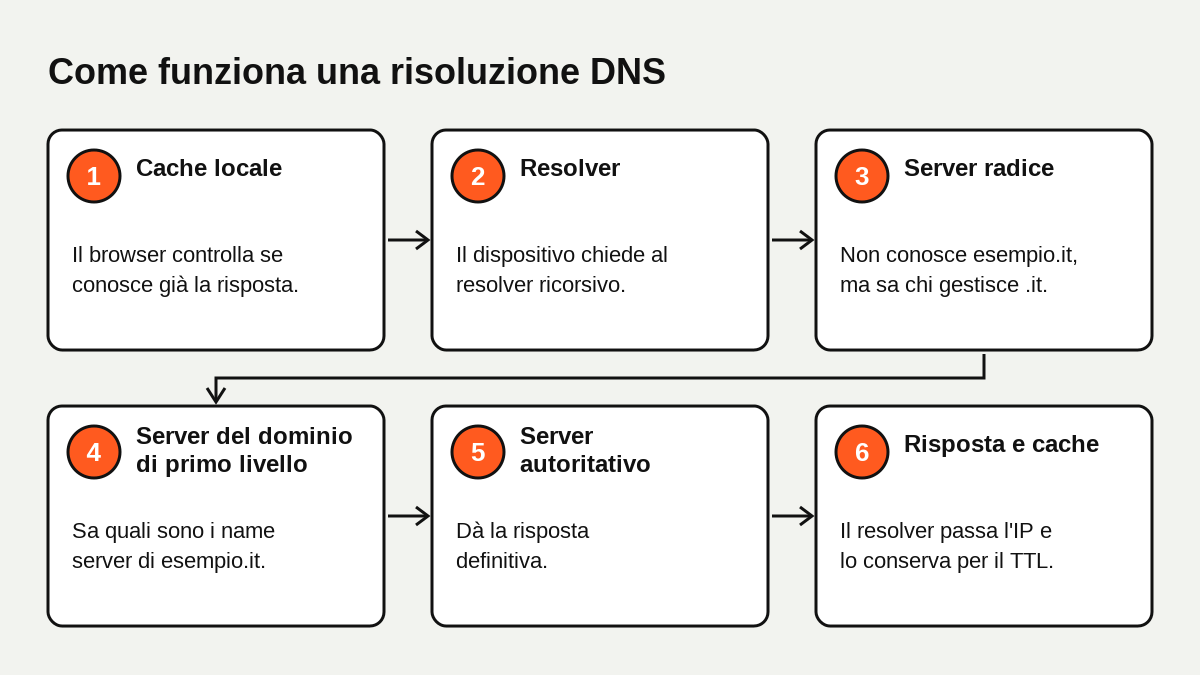
When you type www.esempio.it and press Enter, this is what happens:
- Local cache. The browser and the operating system check whether they already know the answer from a recent visit. If so, it ends here.
- Resolver. Otherwise the device asks its DNS server, the recursive resolver: the one run by your ISP, your office router or a public service like 8.8.8.8 or 1.1.1.1. The resolver has a cache too, and it often already has the answer.
- Root server. If it doesn't, the resolver asks one of the root servers, which doesn't know esempio.it but knows who manages the .it domain.
- Top-level domain server. The .it server doesn't know the address, but it knows which name servers belong to esempio.it.
- Authoritative server. The esempio.it name server, the one configured by whoever manages the domain, gives the final answer:
www.esempio.it points to 203.0.113.10. - Answer and cache. The resolver passes the address to your device and keeps it for the time set by the domain owner, the TTL (time to live). Until the TTL expires, later requests don't go through the whole chain again.
The TTL also explains something anyone who runs websites knows well: after you change records, some users see the new server and others the old one until the caches expire. This is what people loosely call propagation.
DNS servers: resolvers and authoritative servers
"DNS server" can mean two different roles, and it helps to keep them apart:
| Resolver (recursive) | Authoritative name server | |
|---|---|---|
| What it does | Looks up answers on behalf of whoever is browsing | Holds a domain's records and answers for that domain |
| Who chooses it | The user (or the router, automatically) | The domain owner, from the registrar's or DNS provider's panel |
| Examples | Your ISP's DNS, 8.8.8.8, 1.1.1.1 | The name servers of the registrar, the host or a DNS service |
| When you change it | For privacy, filtering, reliability | To connect the domain to hosting, email, verifications |
If you own a website, the authoritative name server matters most: that's where the records live, and if it doesn't answer, nobody can find your site.
The most popular public DNS services and how to choose
There is no single best DNS server: it depends on what you need. These are the criteria that matter.
- Speed. The resolver affects how long it takes to find a site's address. If you want to compare, test the services from your own connection, for example with
dig @9.9.9.9 esempio.itand the other addresses in the table. - Privacy and logs. The resolver sees the names of the sites you visit. Read the service's policy: Cloudflare, for example, states that it deletes the public resolver's logs within 25 hours.
- Filters. Some services block malicious domains, others also block adult content: useful at home or in the office.
- Encryption. DNS over HTTPS (DoH) and DNS over TLS (DoT) encrypt requests between the device and the resolver, so anyone in the middle can't read them.
| Service | IPv4 | IPv6 | Encryption | Filters |
|---|---|---|---|---|
| Google Public DNS | 8.8.8.8, 8.8.4.4 | 2001:4860:4860::8888, 2001:4860:4860::8844 | DoH: https://dns.google/dns-query; DoT: dns.google (Google, DoH) | General-purpose resolver |
| Cloudflare 1.1.1.1 | 1.1.1.1, 1.0.0.1 | 2606:4700:4700::1111, 2606:4700:4700::1001 | DoT on Android: one.one.one.one (Cloudflare, Android) | 1.1.1.2 and 1.0.0.2 block malware; 1.1.1.3 and 1.0.0.3 also block adult content (Cloudflare) |
| Quad9 | 9.9.9.9, 149.112.112.112 | 2620:fe::fe, 2620:fe::9 | DoH: https://dns.quad9.net/dns-query; DoT: dns.quad9.net | Blocks malware and validates DNSSEC; 9.9.9.10 is the variant without blocking (Quad9) |
For a website, these services also work as a checking tool: with dig @8.8.8.8 you see what Google's DNS answers, without the cache of your own computer.
How to change your DNS servers
Before changing anything, write down the DNS addresses your device is using now, so you can go back. The addresses to enter are the ones in the table above.
Windows
- On Windows 10, open Control Panel and go to Network and Internet › Network and Sharing Center › Change adapter settings.
- Right-click your Ethernet or Wi-Fi connection › Properties.
- Select Internet Protocol Version 4 (TCP/IPv4), or version 6, and click Properties.
- Choose "Use the following DNS server addresses" and enter the addresses of the service you picked.
macOS
- Apple menu › System Settings › Network.
- Select the connection (Wi-Fi or Ethernet) and click Details.
- Open DNS and, under DNS Servers, add the addresses of the service you picked with the + button.
Android (Private DNS)
- Open Settings › Network & internet › Advanced › Private DNS (in some Android versions there is no Advanced entry and Private DNS sits directly under Network & internet).
- Choose "Private DNS provider hostname".
- Enter the service's hostname, for example
dns.google(Google) orone.one.one.one(Cloudflare), and tap Save.
Android uses a hostname here rather than an IP address because Private DNS is encrypted with DoT. This setting has no effect with a VPN or with third-party apps that change DNS. More details on Private DNS are in the Android guide.
iPhone
- Settings › Wi-Fi.
- Tap the "i" icon next to the network, scroll to DNS and tap Configure DNS.
- Select Manual, add the service's addresses and save. To go back, choose Automatic again.
The change applies only to that Wi-Fi network, not to the phone's mobile data. If you then can't open the login page of a public Wi-Fi, temporarily set DNS back to automatic.
"DNS not responding" and NXDOMAIN: two different problems
These two errors get mixed up, but they have different causes and fixes.
| The DNS server is not responding | NXDOMAIN | |
|---|---|---|
| What it means | The request gets no answer or gets an error: the domain's name servers are unreachable or broken | The server answers, but says that name doesn't exist (non-existent domain) |
| Typical causes | Name servers down or overloaded, firewalls blocking queries, zone not loaded, delegation to the wrong name servers | Missing or misspelled record, expired or unregistered domain, subdomain never created |
| How to check | dig esempio.it NS +short, then dig @ns1.provider-dns.it esempio.it A directly against the name server | dig www.esempio.it A: the response status is NXDOMAIN |
| What to do | Check the name servers set at the registrar and that the DNS service is active; for a firewall, make sure UDP and TCP are allowed | Check the zone: does the record exist and is it spelled correctly? Is the domain about to expire? |
Google treats both as network errors: in Crawl Stats you see them as "DNS unresponsive" and "DNS error" (see the SEO section). If only one site won't open from your computer but it does from other networks, also try flushing the local cache (ipconfig /flushdns on Windows) and repeating the query with dig @8.8.8.8.
If you have a website: DNS zone and records
Every domain has a DNS zone: the list of records that say where the site is, where email goes, and who can send email on behalf of the domain. You manage it from the panel of the registrar or of the DNS service you've given your name servers to. These are the records you will certainly use:
| Record | What it's for | Example |
|---|---|---|
| A | Links a name to an IPv4 address | esempio.it points to 203.0.113.10 |
| AAAA | Links a name to an IPv6 address | esempio.it points to 2001:db8::10 |
| CNAME | Makes one name an alias of another name | www.esempio.it points to esempio.it |
| MX | Indicates the servers that receive email | esempio.it points to mx1.fornitore-email.it |
| TXT | Free text: verifications (Search Console), SPF, DKIM, DMARC | "v=spf1 include:_spf.fornitore.it ~all" |
| NS | Indicates the domain's authoritative name servers | esempio.it points to ns1.provider-dns.it |
Three uses that directly concern marketing:
- Verification in Search Console. A Domain-type property, the one that covers http, https, www and all subdomains, can only be verified with a DNS record (TXT or CNAME). Leave the record in place even after verification, otherwise the property lapses.
- Emails that get delivered. Since February 2024 Gmail requires SPF or DKIM from all senders, and SPF, DKIM and DMARC from anyone sending more than 5,000 emails a day, as the sender guidelines explain. These are TXT records: if your newsletters end up in spam, this is one of the first places to look.
- Connecting external tools (email platforms, landing pages, CDNs): they almost always ask for a CNAME or a TXT.
To check what the records really answer, without waiting for your computer's cache:
dig esempio.it A +short
dig www.esempio.it CNAME +short
dig esempio.it MX +short
dig @8.8.8.8 esempio.it A +short      # what Google's DNS sees

nslookup -type=TXT esempio.it          # on Windows
DNS and SEO: what happens to Googlebot
For SEO, DNS matters in a very simple way: if it doesn't answer, Google can't reach the site. Google treats DNS errors like server errors (5xx): it slows down crawling, and URLs that are already indexed but stay unreachable are removed from the index within a few days. Pages come back when the problem is fixed, but a few days of an unreachable site has a cost.
Where to see it: in Search Console, Settings › Crawl stats › Host status. The "DNS resolution" entry shows when the DNS server didn't recognize the hostname or didn't respond during crawling; in the response table you find "DNS unresponsive" and "DNS error". If the status is red, your first call is to the registrar or the DNS service.
Other things DNS doesn't do: it is not a ranking factor, and changing name servers doesn't move your positions. A slow DNS lengthens the first page load slightly, but that depends mostly on the server and the code. If you want to understand how Google finds and reads pages, start with how search engines work.
Changing hosting without losing traffic: the DNS checklist
The moment DNS does the most damage is a migration: new hosting, new server, a move to a CDN. A cautious procedure:
- Export the current DNS zone or take a screenshot of all the records. The classic disaster is moving the name servers and forgetting the MX records: the site works, the email doesn't.
- Lower the TTL of the records you're going to change (for example to 300 seconds) at least a day ahead, so caches expire quickly when you make the switch.
- Prepare the new server and test it before the switch, for example with your computer's hosts file.
- Change the A, AAAA and CNAME records, and check with
digthat the name servers answer with the new values. - Keep the old server running for a few days: anyone who still has the old answer in cache must be able to find the site.
- Check Search Console in the following days: Host status, crawl errors, indexed pages. A recent DNS change, up to 72 hours old, may not have propagated across the global DNS network yet: if you see errors, wait before looking for other causes.
- Set the TTL back to a normal value once everything is stable.
If the URLs or the domain change along with the server, the migration becomes a real SEO project, with redirects, sitemaps and canonicals. DNS is one of the points to check in a technical SEO audit. Between your device and the site there is sometimes also a proxy server: I cover it in a separate guide.
If your Google traffic has dropped after a hosting or DNS change, you can win back the visits you're losing: here is where to start.
Frequently asked questions
What is the best DNS server?
There is no single best one. Google Public DNS, Cloudflare and Quad9 are popular choices: you pick based on privacy and logs, malware or family filters, and support for DoH and DoT.
How do you change the DNS server?
From your device's network settings: on Windows and macOS you edit the Wi-Fi or Ethernet connection, on iPhone the individual Wi-Fi network, and on Android you set the hostname under Private DNS. You enter the addresses of the service you chose, after writing down the current ones.


