
Google AI Mode: What It Is, How Query Fan-Out Works and How to Get Cited
AI Mode runs the searches you would have run yourself and answers with links to the pages it used. How it works, one question broken down step by step, and the checks to get cited.

Eugenio Tommasi
Founder of SEO SRL
Published 23 min read

Google AI Mode is Google's AI-powered search mode: it answers even long questions with AI-generated text and links to sources, and you continue as in a chat.
Table of contents (10 sections)
- What Google AI Mode is and when it launched in Italy
- How to use AI Mode, step by step
- How AI Mode works: query fan-out, sources and models
- Query fan-out step by step: a real question broken down
- Deep Search and agentic features: what Google has documented
- What changes for site owners
- The Google-side actions: indexing, snippets, Merchant Center and Business Profile
- How to measure AI Mode in Search Console and Analytics
- The mistakes that take a site out of AI Mode
- Frequently asked questions
AI Mode is not a new search engine with its own rules and tricks to learn. It is Google Search running the searches you would have run yourself, reading the results, and giving you an answer with links to the pages it used.
If you have a website, two things matter: which questions Google asks itself behind the scenes, and how you can tell from your reports whether your pages end up in the answer. You get both here, with a real question broken down step by step and the checks to run in Search Console, Merchant Center and Business Profile.
What Google AI Mode is and when it launched in Italy
AI Mode is Google's AI-powered search mode. You ask a question, even a long one full of conditions. You get an AI-generated text with links to the sites the information comes from, and from there you keep going with follow-up questions, as in a chat.
Google presents it as the tool for questions that call for exploration, reasoning or complex comparisons: the kind that used to force you to run three or four searches and open ten tabs.
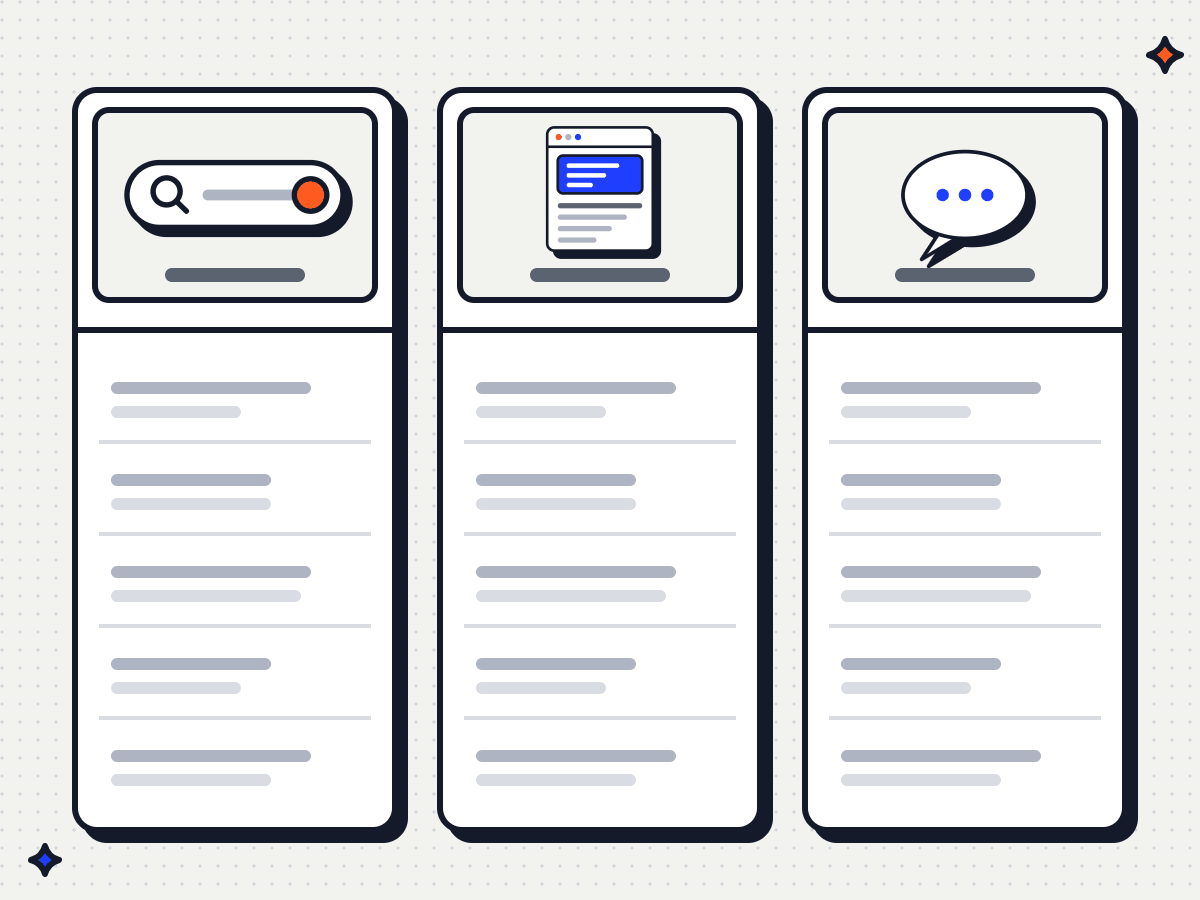
The difference from AI Overviews is who decides. An AI Overview appears on its own at the top of the classic results, when Google thinks it is useful. You open AI Mode yourself, or you get there by asking a follow-up question from an AI Overview.
The dates that matter
- March 5, 2025: Google introduces AI Mode as an experiment in Search Labs, open first to Google One AI Premium subscribers, with a custom version of Gemini 2.0.
- May 20, 2025: at Google I/O it becomes available to everyone in the United States, with no Labs sign-up, with a custom version of Gemini 2.5.
- October 8, 2025: it launches in Italy and in Italian, as a tab on the results page and in the Google app for Android and iOS. With that expansion it passes 200 countries and territories.
- December 17, 2025: Gemini 3 Flash becomes the default model of AI Mode worldwide.
- May 19, 2026: at Google I/O 2026 Google announces more than one billion monthly users, a direct jump from an AI Overview into AI Mode, and Gemini 3.5 Flash as the new default model for everyone.
- August 31, 2026: the generative AI features report and the opt-out control arrive in Search Console for all sites worldwide.
In July 2026, presenting the quarterly results, Sundar Pichai said Google has merged AI Overviews and AI Mode into a single search experience. For site owners this means the line between the two features matters less and less: in my view, the pages that work well for one are the natural candidates for the other.
This page is the starting point of the guide to AI search. Google AI Overviews have their own chapter, with the click studies and the snippet controls. What happens outside Google, on ChatGPT, Perplexity, Gemini and Copilot, is covered in the guide to Generative Engine Optimization.
How to use AI Mode, step by step
Before optimizing a site for AI Mode, use it for a week on your customers' questions. You quickly see what kind of answer it gives, how many sources it shows and where it shows them.
Step 1: open AI Mode
There are three ways:
- go to google.com/ai;
- type a question in the box on google.com and tap AI Mode;
- in the Google app, tap AI Mode on the Home screen.
If you use Chrome you can also add your open tabs to the question, to get an answer based on those pages.
Step 2: ask in the format you need
The box accepts much more than text:
- voice, with the microphone icon;
- images, uploaded from the menu, dragged in or pasted;
- files: PDFs, files from your computer and Drive files;
- web pages: paste the URL and ask a question about that page.
Example: you photograph the label of a boiler and ask whether the model is compatible with a hybrid heat pump. Nobody would type that search in words, and indeed Google says that with AI features in Search people ask more complex, longer and multimodal questions.
Step 3: read the answer and open the sources
The answer is a text with links to the sources the information comes from: open them, because those are the sites you compete with. When Google is not confident enough in the quality of a generated answer, it shows a list of web results instead, like a classic search.
Every answer has thumbs up and thumbs down buttons. With the thumbs down you pick a category and add a comment: it is the only direct channel for reporting an error in information about your business.
Step 4: continue with follow-up questions
Type or dictate the next question in the same conversation: AI Mode takes into account what you asked before. With history turned on you can also resume a conversation from previous days; individual entries can be deleted from AI Mode history or from My Activity.
Step 5: choose the model, if you can
The default model, called Fast in the menu, answers most questions. Google AI subscribers can pick a Pro model from the menu, with daily usage limits; as of October 2026 Google's help page lists it as available in English only.
How AI Mode works: query fan-out, sources and models
The mechanism to understand is called query fan-out. When you ask a question, AI Mode does not run a single search: it breaks the question into subtopics, runs many related searches in parallel across different data sources, and then merges the results into one answer, with links.


Google describes it in its announcements and on the Search Central page for site owners. It never shows, however, which sub-searches it ran for a specific answer. You can only reconstruct them, as I do in the next chapter.
Where it gets its information
The sub-searches run across several data sources: the Search index and the information Google already holds, such as Merchant Center product listings and Business Profiles. AI Mode relies on the same quality and ranking systems as classic Search.
The practical consequence is on the Search Central page on AI features: to appear you need no additional requirements. The page must be indexed and eligible to be shown with a snippet. No special files for AI, no dedicated markup.
Why the sources differ from classic search
Each sub-search has its own results. That is why AI Mode can show a wider and more varied set of links than a classic search: a page that ranks on page four for the whole question can be the best answer to one of the sub-questions, and get cited.
It works the other way too. Ranking first for the main keyword does not guarantee a citation if your page does not answer any of the pieces the question is split into well.
The models
AI Mode launched with a custom version of Gemini 2.0, moved to Gemini 2.5 in 2025, to Gemini 3 Flash in December 2025 and to Gemini 3.5 Flash from May 2026. AI Mode and AI Overviews can use different models and techniques, so the same question can produce different answers and sources in the two features.
Query fan-out step by step: a real question broken down
You only understand fan-out by watching it work. I take a question a customer might ask a heating installer and break it down the way AI Mode would. Example: the question, the sub-questions and the page are hypothetical, built to show the method.
The question: “I have a house from the 1970s with cast-iron radiators in Bologna, Italy: is it worth switching to a heat pump, how much does it cost and are there incentives?”
Step 1: identify the parts of the question
Before thinking about sub-searches, underline every element that changes the answer. In this question there are six:
- the subject: heat pump;
- the type of house: 1970s, so probably poorly insulated;
- the existing system: cast-iron radiators;
- the decision: whether it is worth it, compared with what is there now;
- the cost: installation and, implicitly, running costs;
- the place: Bologna, which brings in climate, installers and local rules.
Each element is a filter. An answer that ignores one is useless to the person who asked, and Google knows it: that is why it does not search for the whole sentence, but for the pieces.
Step 2: write the likely sub-questions
For each element, and for each useful combination, write the search you would run if you had to answer well. Eight come out:
- heat pump in a poorly insulated house: does it work?
- heat pump with cast-iron radiators
- high-temperature heat pump or hybrid system
- installation cost of an air-to-water heat pump
- running costs: heat pump vs gas boiler
- heat pump incentives this year
- heat pump installers in Bologna
- time and work needed for the replacement
Google will never tell you whether its sub-searches are these. But the list gives you what you need: the inventory of information without which a complete answer cannot be written.
Step 3: for each sub-question, see which source is needed
Not every sub-question can be answered with a blog page. Some draw on Google's structured data, others on institutional sources. The next step is to work out, row by row, who is best placed to be cited.
| Sub-question | Source Google tends to use | What the installer's site can do |
|---|---|---|
| Does it work in a poorly insulated house? | Technical guides, industry sites | Section with real cases: when it works, when you need to insulate first |
| With cast-iron radiators? | Technical guides, manufacturers | Section with flow temperatures and solutions adopted |
| High temperature or hybrid? | Manufacturers, comparisons | Comparison table of the solutions it installs |
| Installation cost | Pages with explicit prices | Real price ranges, with what they include |
| Running costs | Simulators, agencies, guides | A worked calculation with the assumptions stated |
| Incentives | Institutional sites | A dedicated, up-to-date page with a link to the official source |
| Installers in Bologna | Business Profiles, maps | Complete Business Profile, with categories and services |
| Time and work | Installers' sites | The phases of the job, day by day |
Two rows out of eight are not won with an article. Local installers come from the Business Profile; for incentives, the most authoritative source is the body that manages them. They are still rows to cover, but with the right tool.
Step 4: build the page around the sub-questions
The main page, for example “Heat pump in an existing home”, is organized like this:
- an opening of two or three sentences that answers the whole question, with the conditions;
- an h2 for each of the technical sub-questions (1, 2, 3, 8), with the answer in the first two sentences and then the details;
- a table with the installation cost ranges and what each includes;
- a worked example of running costs, with the assumptions written out (consumption, energy price, date);
- a link to a separate page on incentives, which ages faster and needs updating on its own;
- address, service area and contact details consistent with the Business Profile.
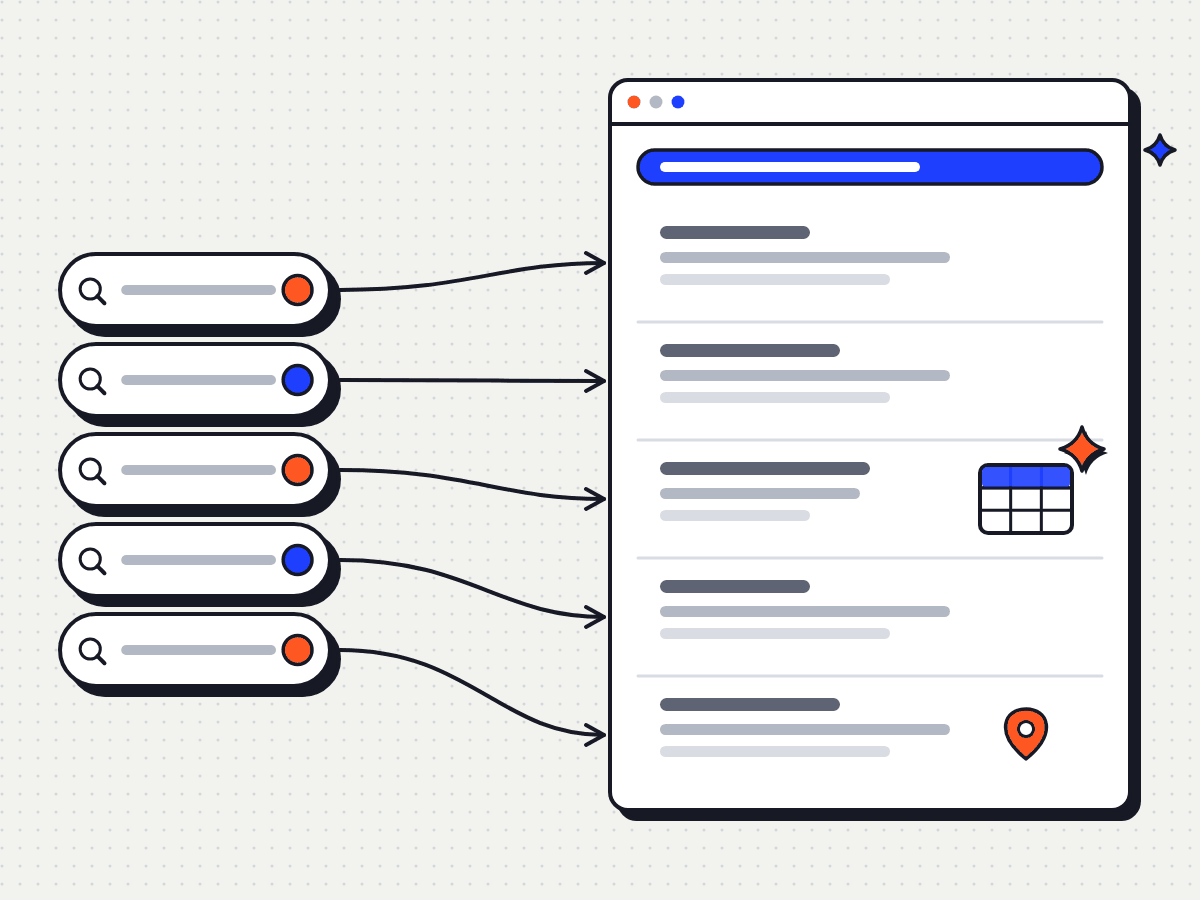
Each block must stand on its own. If the AI extracts only the section on cast-iron radiators, that section must make sense without the rest of the page: explicit subject, no “as mentioned above”.
Step 5: check the result
After publication and indexing, run three checks:
- ask the original question in AI Mode, in incognito, and note which sites appear among the sources;
- also ask two or three sub-questions on their own: often your page shows up first there;
- after a few weeks, look up the page in the Search Console generative AI report and see whether impressions are growing.
The typical mistake. Answering the sub-questions with an FAQ section at the bottom of the page, one line each. A one-line answer gives Google nothing more than the other hundred pages: sub-questions must be treated as real sections, with the detail that only someone who does the work knows.
Deep Search and agentic features: what Google has documented
Plenty of promises circulate around AI Mode. Here I list only the features Google has announced in its official channels, with where and for whom they are available. Almost all started in the United States and in English.
Deep Search
Deep Search is the in-depth version of AI Mode. It runs hundreds of searches, cross-references the information and in a few minutes produces a full report with citations. Google announced it at Google I/O in May 2025 and in July 2025 opened it to Google AI Pro and Ultra subscribers in the United States, through the AI Mode experiment in Labs.
For a site the principle does not change compared with normal fan-out; the scale does: hundreds of sub-searches instead of the many of normal fan-out dig deeper, and pages with data and details found nowhere else have more chances of ending up among the citations.
The features that act on your behalf
| Feature | What it does | Where and for whom | What matters for the site |
|---|---|---|---|
| Calls to businesses | Google calls a local business to ask for prices and availability on the user's behalf | United States, announced in July 2025 | Business Profile and automated call settings |
| Local service bookings | Finds services and experiences with up-to-date prices and availability and leads to booking with the provider | United States, announced in May 2026 for the summer | Prices and availability readable on the site and in the Profile |
| Information agents | Monitor the web in the background and send updates on a topic (an apartment, an upcoming product) | First for Google AI Pro and Ultra subscribers, announced in May 2026 | Pages that are genuinely updated, with the update date |
| Generative interface | Answers with charts, simulations and tables built around the question | For everyone, announced in May 2026 for the summer | Data in HTML tables, easy to reuse |
| Personal Intelligence | Answers that take Gmail and Google Photos into account, if the user connects them | Almost 200 countries and 98 languages, no subscription (May 2026) | No direct lever: answers become more personal |
For calls to businesses there is a Business Profile help page. The owner can manage them from business.google.com, in Business Profile settings, then Advanced settings, under the section on automated calls and messages from Google. There they decide whether to accept customer requests made through Google and automatic profile updates.
What changes for site owners
Pages do not disappear and clicks do not end. What changes is the type of questions, the number of sources competing for an answer and the way you measure the result.
Questions get longer
Introducing AI Mode in Italy, Google wrote that early users asked questions two or three times longer than a traditional search. More words mean more conditions, and more conditions mean more sub-searches. A generic page on a topic competes poorly with a page that answers a specific situation.
Clicks at the same position are falling
On the sites I follow, I compared the same queries at the same average position a year apart, between July-September 2025 and July-September 2026: CTR in the top ten positions fell by 14%, and question queries (how, what, why, when) lost 28%, against 13% for the others. Search Console does not separate AI Overviews and AI Mode, so I cannot attribute the whole drop to AI answers; but questions are exactly the searches Google answers on its own.
Being cited becomes the new ranking
Google says it sends billions of clicks to sites every week through AI features in Search. It is Google's own figure, with no breakdown by site or industry: check on your pages' conversions how much they are worth to you.
In its June 2026 announcement for site owners, Google added more links inside the text of answers, site previews and preferred sources in AI Overviews and AI Mode too: whoever has chosen your site as a preferred source sees it highlighted.
You can now opt out, but it has a price
In Search Console, under Settings, there is the control for generative AI in Search. If you opt out, the site receives neither traffic nor impressions from AI Overviews, AI Mode and the generative AI features of Google's personalized feed (Discover). It is not a ranking signal for the rest of Search and it does not concern model training, which is managed with Google-Extended. For almost all company and professional sites, opting out means giving up a storefront without gaining anything in the classic results; the full reasoning on when it makes sense is in the chapter on AI Overviews.
The Google-side actions: indexing, snippets, Merchant Center and Business Profile
Much of the advice on “optimizing for AI Mode” is about text. Before the text, though, there are five technical and data checks that decide whether Google can use your pages. For each: what to do, how to check it, the most common mistake.
1. Make the pages indexable
What to do. The pages you want cited must be crawlable and indexed. robots.txt must not block Googlebot, and neither must the CDN or the hosting firewall.
How to check. In Search Console open URL Inspection and paste the page. You should read “URL is on Google”; below, “Crawl allowed: Yes” and “Indexing allowed: Yes”. If you have just changed the page, run the live URL test and look at the screenshot to check that Google sees the content.
The typical mistake. An anti-bot system that answers Googlebot with a verification page. In the browser the site works; in URL Inspection the fetched page is empty.
2. Let snippets be read
What to do. The rules that limit the snippet also apply to AI. The nosnippet meta tag prevents the content from being used as direct input for AI Overviews and AI Mode; max-snippet limits how much text can be used. With data-nosnippet you exclude only part of the page, for example a box with confidential data.
How to check. In URL Inspection open “View crawled page” and search the HTML for “nosnippet” and “max-snippet”. On many pages a crawler that extracts the meta robots of the whole site is more practical.
The typical mistake. A nosnippet added to all product pages to hide prices in the results. The side effect is that those pages can no longer be a direct source in AI answers. The detail of the three controls, with code, is in the robots meta tag specification.
3. Put the information in text and structured data
What to do. Prices, hours, specs, terms and comparisons go in HTML, not only in images, PDFs or sliders. Add the structured data suited to the page (Organization, LocalBusiness, Product, Article) and keep it identical to the visible text.
How to check. Turn off images in the browser or read the HTML in URL Inspection: what you do not see there, Google does not read as text. For markup use the Rich Results Test and the Enhancements reports in Search Console.
The typical mistake. Markup that says “in stock” while the page says “sold out”, because the plugin updates one and not the other. You give Google two versions of the same information and leave the choice to it.
4. Keep the Merchant Center feed clean
What to do. If you sell online, AI Mode's product answers also draw on Google Merchant Center data. In the feed, prices, availability, shipping and returns must be correct, and the attributes that describe the product complete: color, material, size, style.
How to check. In Merchant Center open Products and then the Needs attention tab: you find the issues by impact, the number of products involved and the Fix button. In May 2026 Google also announced, for Merchant Center, statistics on AI shopping experiences (AI Mode, AI Overviews, Gemini app), with an attribute completeness score; the planned launch covers the United States, Canada, Australia, India and New Zealand.
The typical mistake. Fixing prices on the site and forgetting the feed, which updates on its own schedule. Until the two match, Google has two different prices for the same product.
5. Complete the Business Profile
What to do. For local questions the main source is the Google Business Profile. Hours (holidays too), categories, services with descriptions, service area, recent photos: these are the pieces of information an answer to “who does this near me” can use.
How to check. Search for your business name and ask AI Mode about hours and services: compare the answer with reality. Then check the Profile for changes suggested by Google or users, which sometimes alter an opening time without you noticing.
The typical mistake. A Profile with only the primary category and no described services. If the sub-search is “heat pump installer”, a profile that just says “Plumber” competes poorly.
| Action | Where to check | Sign of a problem |
|---|---|---|
| Indexing | Search Console, URL Inspection | “URL is not on Google” or crawling blocked |
| Snippets | HTML of the crawled page | nosnippet or low max-snippet on pages meant to be cited |
| Text and markup | Rich Results Test, Enhancements reports | Data only in images or markup that differs from the text |
| Products | Merchant Center, Products, Needs attention | Products with issues or missing attributes |
| Local business | Business Profile and a test in AI Mode | Hours or services different from the real ones |
One control you do not need: Google-Extended. It concerns the training of Gemini models and grounding in those products, and Google writes that it does not affect inclusion in Search. Blocking it does not remove you from AI Mode, and leaving it open does not get you in. For the crawlers of other AI engines, the map is in how to appear in ChatGPT, Perplexity and AI Mode answers.
How to measure AI Mode in Search Console and Analytics
Until summer 2026 your presence in AI Mode could only be guessed. Now there is a dedicated report, with precise limits worth knowing before drawing conclusions.
The generative AI performance report
In Google Search Console, among the performance reports, you find the generative AI performance report. It shows how many times links to your site appeared in AI Overviews and AI Mode.
- Metric: impressions only.
- Dimensions: pages, countries, dates (day, week or month) and devices.
- Counting: in the chart, several links from the same site in the same answer count as one impression; in the per-page table the count is per page, which is why totals may not match.
- Recent data: the latest days are preliminary, marked by a dashed line, and may change.
There are no clicks, CTR, position or queries. And data from Search Labs experiments is left out.
Clicks: inside the Performance report
Clicks from AI Overviews and AI Mode exist, but they have no report of their own: Google counts them in the Performance report, Web search type, mixed with those from classic results. There is no filter that separates them.
In Google Analytics 4
In the default channel grouping, traffic from AI Overviews and AI Mode ends up in Organic Search, together with the rest of Google. The AI Assistants channel collects visits from ChatGPT, Gemini, Deepseek, Copilot or Grok, and the Analytics guide on channels specifies that AI Overviews and AI Mode are excluded from it.

The monthly routine in four steps
- Export AI impressions by page from the generative AI report, last 28 days and the previous period.
- Export clicks and impressions for the same pages from the Performance report, Web search type, same period.
- Put the two tables side by side and look at the pages where AI impressions grow and clicks fall: those are the ones where the AI answer is enough for the searcher. There you need one more reason to click (a data point, a calculator, a downloadable template).
- Manually test 20-30 key questions in AI Mode, in incognito, and note whether you appear among the sources. Answers change from one run to the next: the trend over several months counts, not a single test.
What you cannot measure today
- AI Mode clicks separated from those of classic search;
- the queries that generated AI impressions;
- the difference between AI Overviews and AI Mode in the report;
- the fan-out sub-searches;
- the position of your link inside the answer;
- mentions of your brand without a link.
For the last ones you need AI answer monitoring tools, which ask sample questions and record the citations. They work like a poll: useful for the trend, not very reliable on a single data point.
The mistakes that take a site out of AI Mode
The most common mistakes are not about text but about decisions made out of fear or haste. Each has a simple check.
Blocking everything to protect content
A noindex or nosnippet applied to whole sections “to avoid giving content to the AI” removes those pages from the answers and, in the case of noindex, from the classic results too. If you have truly confidential content, use data-nosnippet on the block or put it behind a login.
How to check: the Search Console Page indexing report, under “Excluded by ‘noindex’ tag”, and a site crawl for meta robots.
Chasing files and markup “for AI”
For AI Overviews and AI Mode Google writes that you do not need machine-readable files, text files for AI or special schema.org markup. An llms.txt does no harm, but it changes nothing in Google Search: spend the time on the pages.
Writing a page for every sub-question
Fan-out pushes some people to create dozens of thin pages, one for every variant of a question. The result is a site full of near-identical pages that compete for the same searches and answer none of them well. Better one complete page per topic, with the sub-questions as sections, and separate pages only where the topic stands on its own, like incentives in the example.
How to check: in the Performance report filter a query and look at the Pages tab. If three or four of your pages alternate for the same query, you are splitting your strength.
Reading only CTR
CTR falls when impressions grow faster than clicks, and with AI answers impressions grow. A page with falling CTR can bring the same clicks and more leads. Look at AI impressions, absolute clicks and conversions together, page by page.
Frequently asked questions
Is Google AI Mode free?
Yes, the AI Mode tab in Google Search can be used without a subscription, with the default model. Google AI subscriptions add a Pro model with daily limits, for now in English, and some features such as Deep Search in the United States and the information agents announced in May 2026.
Is AI Mode the same thing as Gemini?
No. Gemini is Google's AI assistant, with its own app. AI Mode is a mode of Google Search: it uses custom versions of Gemini models, builds answers on web results and shows links to the sources. That is why a site appears in AI Mode under the rules of Search, not those of the Gemini app.


