
How to Create a Website with WordPress: Step-by-Step Guide
The concrete steps for a WordPress site done right: up-to-date hosting, installation from wordpress.org, HTTPS, settings, a lightweight theme, a few plugins, SEO, security, backups and updates.

Eugenio Tommasi
Founder of SEO SRL
Published 9 min read
Creating a website with WordPress means installing the CMS on an up-to-date host, configuring it with HTTPS and permalinks, choosing a lightweight theme and a few plugins, and taking care of SEO, security and backups.
Table of contents (14 sections)
- Before you install: is WordPress right for you?
- 1. Choose suitable hosting
- 2. Install WordPress from wordpress.org
- 3. Enable HTTPS
- 4. Basic settings and permalinks
- 5. Choose a lightweight theme
- 6. A few well-chosen plugins
- 7. Pages, menus and structure
- 8. Basic SEO on WordPress
- 9. Security, backups and updates: a routine
- Privacy and cookies on WordPress
- Before you publish
- When a professional makes sense
- Frequently asked questions
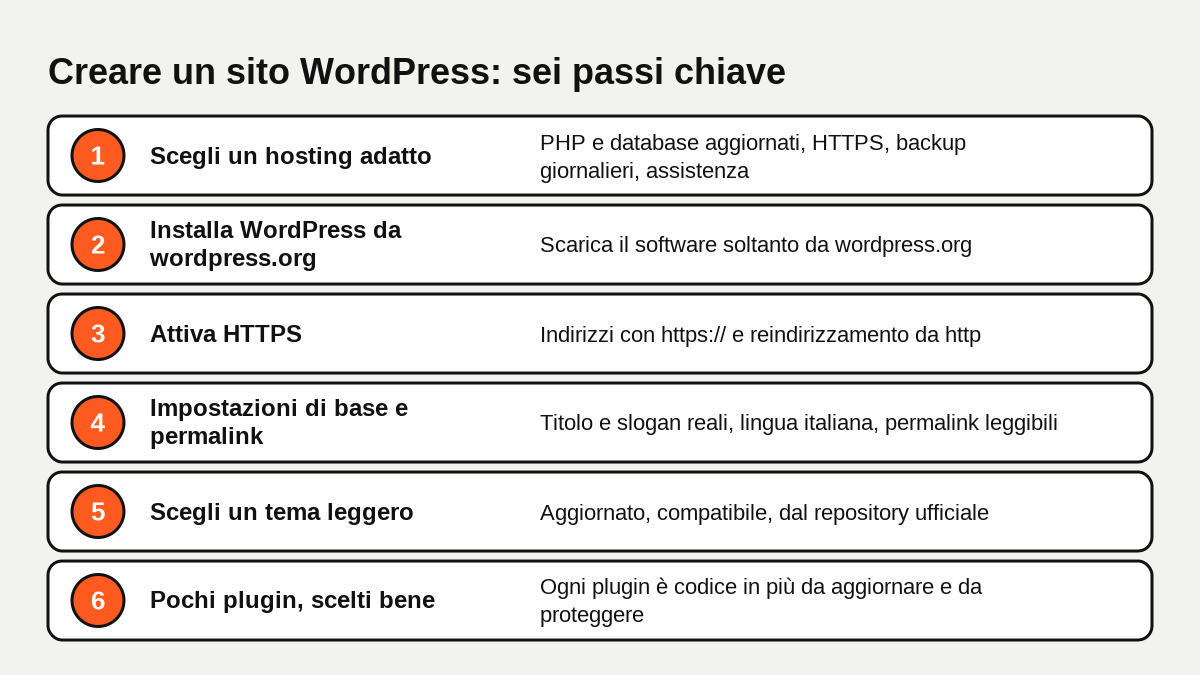
To create a website with WordPress, you choose a host with up-to-date PHP and database versions, install WordPress downloaded from wordpress.org, enable HTTPS, set up permalinks and the basic options, install a lightweight theme and a few plugins, create pages and menus, and configure SEO, security and backups. On a suitable host the installation takes a few minutes; the real work is in the setup and the content.
This chapter continues the guide to building a website, where you decide on your goal, domain and platform. Here I assume WordPress is the right choice and go step by step.
Before you install: is WordPress right for you?
WordPress is free software that you install on your own hosting. On October 20, 2026, W3Techs counted it on 39.6% of all websites and 58.3% of those with a known CMS: that means themes, plugins, tutorials and professionals everywhere. The flip side is that the site is your responsibility: nobody handles updates, backups and security for you, unless you hand them to someone.
If you need a three-page brochure site and don't want to touch it for years, a site builder may be enough. If you want a blog, a brochure site that grows, a small online store or serious SEO, WordPress is a solid choice. For a full comparison with site builders and custom development, read How to Create a Website.
1. Choose suitable hosting
The official WordPress requirements recommend PHP 8.3 or later, MariaDB 10.11 or later or MySQL 8.0 or later, and HTTPS support. WordPress still runs on PHP 7.4 and MySQL 5.5.5, but those versions can expose your site to vulnerabilities. Apache or Nginx are fine as a web server, as is any server that supports PHP and MySQL. When you compare plans, ask or check for:
- up-to-date PHP and database versions, with the option to choose the PHP version from the control panel;
- a free HTTPS certificate with automatic renewal;
- daily backups and the ability to restore them;
- SSH or SFTP access, not just plain FTP;
- resources suited to the traffic you expect, and support you can actually reach;
- a staging environment, useful once the site becomes important.
Cheap hosting is fine to start with, but a slow or frequently unreachable site costs you more in lost visits than you save. The simplest criterion: up to date, with backups, with support.
2. Install WordPress from wordpress.org
Download the software only from wordpress.org: other sources may contain malicious code. Many hosts offer one-click automatic installation: that's fine as long as it installs the official, up-to-date version. Alternatively, manual installation is simple:
- create a database and a dedicated user from the hosting control panel;
- upload the WordPress files to the site folder via SFTP;
- open your domain in the browser and follow the setup wizard, entering the database details;
- choose the site title, an administrator username that is not “admin”, a long, unique password and an email address you actually check.
During development, in the “Reading” settings you can tick “Discourage search engines from indexing this site”. Remember to untick it at launch: forgetting it keeps the site out of Google.
3. Enable HTTPS
Once the certificate is active, check in Settings › General that “WordPress Address” and “Site Address” start with https://. Then:
- automatically redirect http to https, and the non-www version to the www version (or vice versa), choosing a single form;
- check that no images or scripts are still loaded over http (mixed content);
- force HTTPS for the admin area too.
4. Basic settings and permalinks
Before you create content, three minutes in the settings will save you problems later:
- General: a real title and tagline, the site language, the timezone of your city, the date format.
- Permalinks (Settings › Permalinks): choose a readable structure such as “Post name”, avoiding URLs with numbers and question marks. Do it now: changing them after publication requires redirects.
- Discussion: if you don't use comments, turn them off; if you do, enable moderation to keep spam under control.
- Users: a public display name different from the login username.
- Sample content: delete the sample post and page, and any themes and plugins you don't use.
5. Choose a lightweight theme
The theme determines appearance, speed and flexibility. “Multipurpose” themes with hundreds of options and dozens of scripts often slow the site down more than they help. Look instead for:
- a lightweight theme, recently updated and compatible with the latest version of WordPress;
- downloaded from the official theme repository or from a known author, never from sites offering “free” versions of paid themes;
- a block theme or one compatible with the WordPress editor, which adapts well to phones;
- a child theme if you plan to change the code, so updates don't wipe your changes.
Try the theme with your real content and measure speed with PageSpeed Insights before committing: the reference values are those of the Core Web Vitals (LCP within 2.5 seconds, INP within 200 milliseconds, CLS within 0.1).
6. A few well-chosen plugins
Every plugin is extra code to update and protect, and it can slow the site down. I follow one rule: the fewer plugins, the better. A reasonable setup for a brochure site or a blog:
- SEO: a plugin that handles title, meta description, canonical and XML sitemap. One is enough; two together create duplicates. Yoast SEO, Rank Math, SEOPress and All in One SEO are compared on a dedicated page.
- Caching and performance: only if your host doesn't already include a cache.
- Images: compression and modern formats, if the theme and host don't handle them.
- Contact forms: a reliable plugin with spam protection.
- Security and backups: a backup plugin that also saves outside the server; an application firewall or a login-attempt limiter, if your host doesn't provide them.
- Cookies and privacy: a tool that truly blocks scripts before consent (see the general guide, cookie section).
Before installing a plugin, check the repository: date of the last update, compatibility with your version of WordPress, number of active installations and recent reviews. A plugin that hasn't been updated in a long time is a risk. Deactivate and delete the ones you don't use: a deactivated plugin that is still installed can remain vulnerable.
7. Pages, menus and structure
Use pages for stable content (home, services, about, contact, privacy) and posts for chronological content (blog, news). Create one page for each main service, each focused on a single topic, and organize them hierarchically if it makes sense. The main menu should have few items; legal pages go in the footer.
Set a static page as your home page in Settings › Reading. For each page, write a unique H1, sections with H2s, internal links to related pages and alt text for images. How to write the copy and think about structure is covered in the general guide.
8. Basic SEO on WordPress
- With the SEO plugin, choose a title and meta description template, then customize them for the important pages.
- Check that the XML sitemap is active and includes only the pages you want indexed (usually pages and posts, not tags and empty archives). How it works: what sitemaps are for.
- Register the site on Google Search Console, verify ownership and submit the sitemap. The sitemap is optional but useful.
- Check that categories, tags and author or date archives don't create near-empty or duplicate pages: if they serve little purpose, set them to noindex from the SEO plugin.
- Set the canonical on every page (the plugin does it) and watch out for duplicate URLs: see the canonical tag.
- Add a favicon and an image for social sharing.
9. Security, backups and updates: a routine
The basic measures are collected in the WordPress hardening guide. The main ones:
- install plugins and themes only from the official repository or from known companies;
- use two-factor authentication for admin accounts and unique passwords;
- don't use the username “admin”;
- set directory permissions to 755, file permissions to 644 and the wp-config.php file to 400 or 440;
- disable the file editor in the dashboard with the
DISALLOW_FILE_EDITconstant in wp-config.php; - use HTTPS for the admin area.
On top of these, give users the minimum role they need (a contributor who writes posts is not an administrator) and remove accounts and plugins that are no longer needed. If your site gets hacked, you should know what to do: what to do if your site is hacked.
Backups. A backup has two parts: the database (posts, pages, comments) and the files (core, plugins, themes, uploads and files such as wp-config.php). You need both to restore the site, and they should be kept together as a single set. Keep three to five recent backups in different places (the host's server, cloud, a local computer), weekly for a small site and daily for a very active one, and always make one before a major update or a move. Then try restoring one in a test environment: it's the only way to know it works.
Updates. Since version 3.7, WordPress has automatic updates, which by default cover only minor core releases (including security fixes), but updating now and then isn't enough. A simple routine:
- back up (or check that the automatic one is recent);
- update core, themes and plugins, one at a time, paying attention to plugins that affect the site;
- run a quick check of the site: home page, contact form, a service page;
- if something goes wrong, restore the backup and identify the plugin responsible.
During updates WordPress puts the site into maintenance mode for a few moments: how it works and what to do if it gets stuck is covered in Putting WordPress in Maintenance Mode.
Privacy and cookies on WordPress
In Settings › Privacy, WordPress includes a tool to create and assign the privacy policy page, with a starting text to adapt: it's a starting point, not a ready-made document. Check which plugins and external services (analytics, maps, fonts, embedded videos) send visitors' data, describe them in the policy and block non-technical scripts until the user gives consent. For non-technical cookies you need genuine consent: in Italy, the guidelines of the Italian Data Protection Authority (the Garante) rule out silence and pre-ticked boxes.
Before you publish
- The option discouraging search engines has been turned off.
- Contact form tested, with a message that actually arrived.
- Pages checked on a phone, internal links verified.
- Title and meta description in place, sitemap submitted to Search Console.
- Automatic backup active and a restore tested at least once.
When a professional makes sense
You can learn WordPress, and the WordPress course guide shows what to study at each level. Some situations, though, call for specific skills: a custom theme, a store with many products, integrations with management software, multilingual sites, extreme speed optimization, migrations without losing rankings, sites that have already been hacked. For costs, read how much a website costs. If you already have a WordPress site that is slow, outdated or doesn't bring in leads, turn it into a source of customers: have your site analyzed.
Frequently asked questions
How long does it take to install WordPress?
With a host that offers guided installation, a few minutes are enough; manual installation takes a few more steps (database, file upload, setup wizard). The long work comes afterward: theme, pages, copy, SEO and privacy.
