
How to Put WordPress in Maintenance Mode
What WordPress maintenance mode is, when to use it, how to enable it (updates, plugins, server), why you need a 503 with Retry-After to avoid hurting SEO, and what alternatives exist.

Eugenio Tommasi
Founder of SEO SRL
Published 6 min read
WordPress maintenance mode shows visitors a temporary page during updates or other work; to avoid hurting SEO, it must return an HTTP 503 status code and, ideally, a Retry-After header.
Table of contents (7 sections)
WordPress maintenance mode is a state in which the site shows visitors a temporary message instead of the normal pages while you work. WordPress turns it on by itself during updates; for other jobs you use a plugin or a page served by the server. For SEO, the page must return an HTTP 503 status code, ideally with a Retry-After header.
This is a chapter of the guide to building a website, following how to create a WordPress site.
What maintenance mode is
It is a temporary page that replaces the site for visitors while an update or a change is in progress. It does two things: it keeps people from seeing a half-finished site with errors or broken pages, and it stops anyone from submitting orders or forms while the database is changing.
WordPress has a built-in maintenance mode, used when it updates core, themes and plugins: the WP_Upgrader::maintenance_mode() function creates the file at the start of the update and deletes it at the end. WordPress checks whether a file called .maintenance exists in the root folder: maintenance mode is active only if the file was created less than 10 minutes ago, otherwise it is considered over. It is a mechanism designed for short updates, not for closing the site for days.
The message that appears is WordPress's default one, handled by the wp_maintenance() function: if a maintenance.php file exists in the wp-content folder, it is loaded instead of the standard message. Otherwise WordPress responds with a "Maintenance" title, an HTTP 503 status code and a Retry-After header of 600 seconds.
When to use it
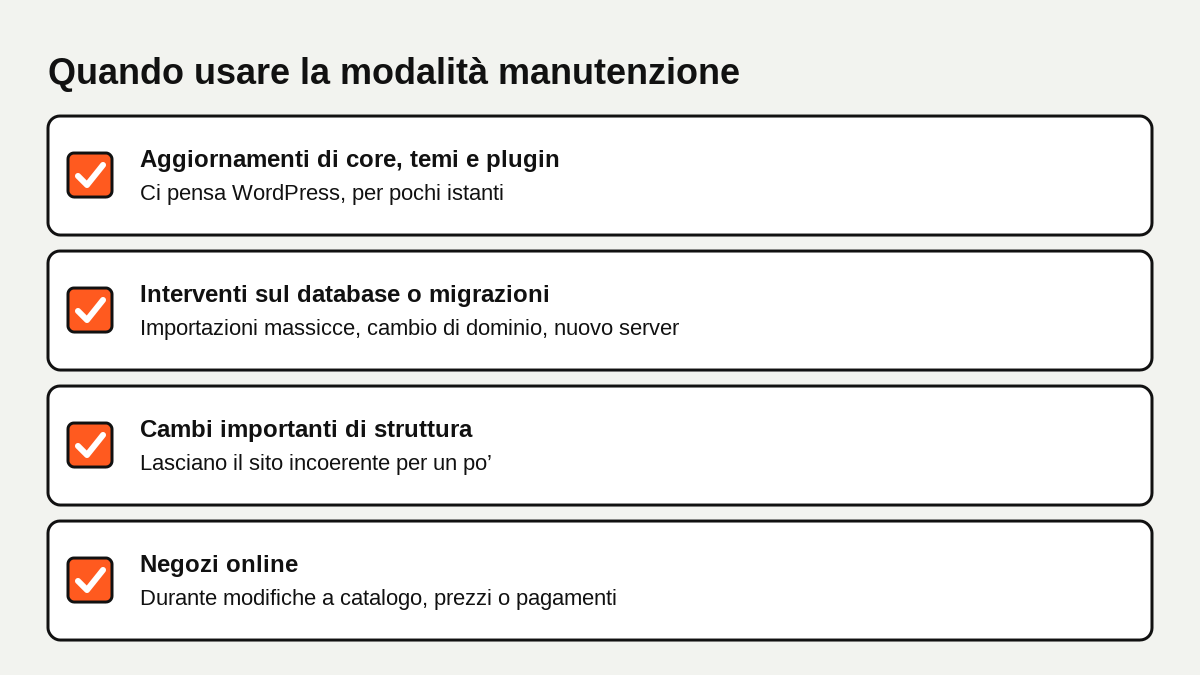
- Core, theme and plugin updates: WordPress handles this by itself, for a few moments.
- Database work or migrations: large imports, a domain change, a move to a new server.
- Major structural changes that leave the site inconsistent for a while.
- Online stores: while you change the catalog, prices or payments, so you don't receive orders with wrong data.
You don't need it to fix a typo or add a page: those changes are made with the site live. Nor for a site that is still under construction, where a separate environment is better (see below).
How to enable it
With WordPress itself, during updates
You don't have to do anything: when you run an update, WordPress creates the .maintenance file and removes it when the operation ends. If the site stays stuck on "Briefly unavailable for scheduled maintenance" because the update was interrupted, the file may have been left in the root folder. Under the 10-minute rule it should expire on its own; if it doesn't, you can delete it via SFTP or from your host's file manager (it is a hidden file, so turn on the display of hidden files), then run the update again after checking that it wasn't left half-finished.
With a dedicated plugin
For planned work there are several maintenance plugins in the official repository. What to look for when choosing:
- whether it really sends a 503 status code (some show the page with a 200 code: check it as explained below);
- whether it lets you set the Retry-After header;
- whether it lets administrators in while visitors see the page;
- whether it is up to date, lightweight and compatible with your WordPress version.
Activate the plugin, check what a visitor sees from an incognito window, do your work, then deactivate it and check again. Don't leave it on "just in case".
With a page served by the server
For work lasting a few hours, or to be sure of the response code, you can have the server (Apache, Nginx) respond directly with a 503 and a static HTML page. Here is an example for Nginx, to adapt and test in a staging environment:
# all requests return 503 with the maintenance page
error_page 503 /manutenzione.html;

location / {
    return 503;
}

# the maintenance page keeps the 503 status and sends Retry-After
location = /manutenzione.html {
    root /var/www/manutenzione;
    add_header Retry-After 3600 always;
    internal;
}

# robots.txt stays reachable with a 200 status (static file)
location = /robots.txt {
    root /var/www/manutenzione;
}
This is a generic configuration example, not an official WordPress procedure: it goes in the site's server block, in place of the normal rules, only for the duration of the work. If you don't know your server configuration, ask your hosting support or whoever manages the site: a mistake can take everything offline.
The 503 code and Retry-After: why they matter for SEO
The right code tells crawlers: "temporary problem, try again later." In practice these rules apply, taken from Google's page on pausing an online business:
- shutting the site down entirely is discouraged and, if you really have to, only for very short periods, a few days at most;
- for a day or two, an informational page with an HTTP 503 code is fine; for longer periods, an indexable home page returning a 200 code as a placeholder is better;
- it is a good idea to send a Retry-After header with an estimated date or duration;
- the robots.txt file must not return 503, because it blocks crawling of the whole site;
- avoid 403, 404 and 410, noindex and the X-Robots-Tag header, which drop URLs from Search, as well as blocking all crawling in robots.txt;
- the page should be lightweight (static HTML, inline CSS) and say when the site will be back and how to contact you;
- while pages return 503, Google cannot update titles, descriptions and structured data.
5xx errors, 503 included, make Google's crawlers temporarily slow down crawling; when the site goes back to returning a 2xx, the crawl rate gradually picks up again. URLs that are already indexed stay in the index during server errors, but if the errors last too long they can be removed over time.
To check what the site returns, open a terminal and run curl -I https://yoursite.com/: the first line should show 503 and, if you set it up, there should be a Retry-After line. Also check /robots.txt, which must keep returning 200.
How long to keep it on
As little as possible: minutes for an update, a few hours for a migration. For a page returning 503, the reasonable limit is 1-2 days. If you need more, don't shut the site down: work on a copy (staging) and publish everything at once, or keep the site online with limited features.
On the page, write the reason, the expected return time and a contact. When you finish, immediately check the home page, main pages, contact form and Search Console for any crawl errors.
Alternatives to maintenance mode
- Staging: a copy of the site at a separate address, where you test updates and changes, then push to production only those that work. In my view it is the best solution for sites with traffic or a store, and many hosts offer it with one click. Keep the copy out of search engines.
- Updating at quiet times, when traffic is at its lowest.
- Backups first: if the update breaks something, you roll back without keeping the site closed for long.
- Limiting features (for example, turning off the cart) while leaving the rest browsable, when the pause only affects one part.
If you don't want to handle all this yourself, WordPress site maintenance covers updates, backups and checks. If instead the site went down after an attack, read about site security and maintenance.
Is your site stuck in maintenance mode, or do you want to know if Google can see it? Find out what's wrong with your site: request the SEO audit or write to us.
Frequently asked questions
What is WordPress maintenance mode?
It is a temporary state in which the site shows visitors a message instead of the normal pages. WordPress turns it on by itself during updates; for other jobs you use a dedicated plugin or a page served by the server.
How do I take WordPress out of maintenance mode if it gets stuck?
If the update was interrupted, the .maintenance file may stay in the root folder. Under the 10-minute rule it should expire on its own; otherwise delete it via SFTP or the file manager (it is hidden), then check that the update completed.
Does maintenance mode hurt SEO?
Not if it is short and returns a 503 code: that tells crawlers the problem is temporary. It can cause damage if the page returns 200, 404 or noindex, or if the site stays closed for a long time. The limit is a few days at most, and 1-2 days with a 503.
How long can I keep the site in maintenance mode?
As little as possible. Minutes are enough for updates. For a page returning 503 the limit is 1-2 days, and shutting the site down for long periods is discouraged: for longer jobs, work on a copy or keep the site online with limited features.
Do I need a plugin for maintenance mode?
Not for updates, which WordPress handles by itself. For planned work a plugin is the simplest route, but check that it really sends the 503 code: some show the page with a 200 code. Check with curl -I or your browser's tools.
What happens to robots.txt during maintenance?
It must keep returning 200. A 503 on robots.txt blocks crawling of the entire site. Make sure your plugin or server configuration doesn't include it in the maintenance page.
